PDF vs Photos: Best Upload Formats for Faster Certified Translation
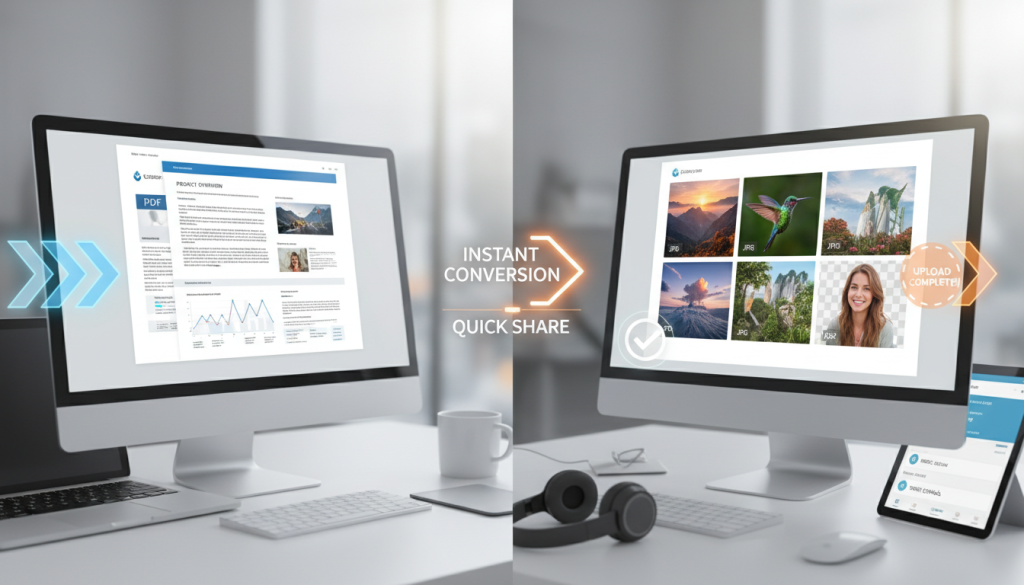
If you have ever wondered about the best format for translation upload, the answer is simple in principle and nuanced in practice: a clean PDF usually wins, but a sharp photo can still be perfectly workable for many certified translation jobs. What matters most is not whether the file came from a scanner or a phone. What matters is whether every word, stamp, signature, handwritten note, and page edge can be read without guesswork.
That is why upload format has a direct effect on speed. A readable file moves quickly to quoting, translation, review, and delivery. A poor file creates hesitation at the very first step. The translator may need to ask for a rescan, confirm unclear text, check missing pages, or spend extra time reconstructing the layout. In urgent work, those small delays add up fast.
The real goal is not to send the smallest file. It is to send the clearest file. The fastest upload is the one a translator can read confidently on the first review.
The quick answer
For most certified translation orders, the format hierarchy looks like this:
- Original digital PDF – Best option for bank statements, court documents, academic records, and any file that already exists digitally.
- Scanned PDF from a phone app or scanner – Strong option for paper documents such as certificates, licenses, and signed forms.
- High-quality JPG or PNG photo – Usually acceptable for simple one-page documents if the image is flat, bright, uncropped, and sharp.
- Screenshots of documents – Often risky because they cut off edges, reduce usable detail, and break page order.
- Compressed images forwarded through messaging apps – Usually the worst choice when speed and accuracy matter.
If your document is multi-page, official, stamped, or urgently needed, PDF is almost always the safer route.
Why upload format affects turnaround more than people expect
People often assume translation speed depends only on word count. In reality, file quality affects the job before translation even begins.
A strong upload helps with:
- Faster quoting
- Fewer clarification emails
- Easier page ordering
- Clearer formatting retention
- Better visibility of stamps, seals, signatures, and handwritten notes
- Lower risk of missing information near margins or corners
A weak upload does the opposite. Even a short document can slow down if the text is blurred, the lighting is uneven, or the file arrives as scattered images with no clear order.
Two jobs can have the same word count and very different turnaround
A one-page birth certificate sent as a flat, readable PDF can move straight into production. A one-page birth certificate sent as a dim photo with glare across the names and a cropped corner may need a resend before anyone can safely proceed. The document did not change. The upload did.
Why PDF usually wins
PDF is usually the strongest format because it keeps the document together as a document.
1. PDF preserves page order
This matters more than many clients realize. When a certificate has a reverse side, when a transcript runs across several pages, or when a legal file includes attachments, one combined PDF reduces confusion immediately.
2. PDF is easier to review and quote
A translator or project manager can zoom in, move between pages quickly, and assess the file as a whole. That makes it easier to spot missing pages, low-resolution sections, and formatting complexity before the work starts.
3. PDF is better for multi-page official documents
Statements, transcripts, contracts, court papers, and application bundles are easier to manage when they arrive in one properly ordered PDF rather than six separate photos in mixed orientation.
4. PDF supports cleaner delivery workflows
If your source file already arrives as a PDF, it is easier to match headings, blocks of text, tables, and page structure during preparation and review.
5. A scanned PDF looks more professional than a casual phone image
That matters when the document includes faint print, embossed seals, handwritten notes, or margin text. A proper scan reduces distortion and usually gives a more neutral, evenly lit image.
Not all PDFs are equal
A PDF can be excellent, or it can still be awkward. There are two broad types:
Searchable PDF
This is usually the best-case scenario. It often comes from an original digital document or a scan processed well enough to preserve readable text structure. It is the smoothest format for quoting and reviewing.
Image-only PDF
This can still be perfectly usable if it is sharp and complete. A clean image-based PDF is often better than a loose photo because it keeps the document in order and is easier to handle. But if the source scan is blurry, converting it into a PDF does not magically improve it. A bad image inside a PDF is still a bad image.
When a photo is good enough
Photos are not automatically a problem. In many certified translation projects, a clear phone photo is enough to start and complete the job.
A photo can work well when:
- The document is one page
- The text is large and clear
- The page is photographed straight-on
- All four edges are visible
- There is no glare, shadow, or finger covering content
- Stamps, seals, signatures, and handwritten notes are readable
This is common for:
- Birth certificates
- Marriage certificates
- Passport identity pages
- Driving licenses
- Police certificates
- Single-page letters
A good photo beats a bad scan
This is where people often go wrong. They assume “scan” always means “better.” It does not. A bright, sharp, undistorted photo is more useful than a dark, skewed, over-compressed scan. The real test is readability.
When photos are the wrong choice
Photos become risky when the document is longer, denser, or more sensitive to layout. Avoid relying on photos alone for:
- Academic transcripts
- Bank statements
- Contracts
- Court orders
- Company documents
- Medical records with fine print
- Multi-page visa or legal bundles
- Documents with notes in the margins
- Documents with text near the fold or edge
In those cases, PDF reduces the chance of page mix-ups, cut-off content, and avoidable delays.
The hidden delay factors clients miss
Most upload problems are not dramatic. They are tiny quality issues that force someone to stop and check.
Compression issues
A file may look fine on your phone and still be weak when opened on a larger screen. Compression can soften numbers, flatten faint stamps, and blur letters that matter. This often happens when files are:
- Forwarded through messaging apps
- Downloaded from screenshots
- Saved repeatedly
- Exported at low quality
- Merged by low-quality tools
Cropped edges
Official documents often contain important details at the edge of the page: serial numbers, registration references, stamps, seals, annotations, or validation marks. If the edge is missing, the translation may be incomplete.
Glare and shadows
Glossy documents, laminated cards, and papers photographed under strong overhead light often hide key text. A document can be “mostly readable” and still be risky.
Perspective distortion
If the camera is angled, names and numbers near the top or bottom may warp slightly. This matters more than most people think when official spelling must match exactly.
Mixed uploads
Five images, two screenshots, one PDF, and a cropped reverse side is not just messy. It slows the first review. The cleaner the upload package, the faster the job moves.
The most reliable format by document type
Certificates and civil documents
For birth, marriage, death, and divorce certificates, a clean PDF is preferred, but a high-quality photo is usually acceptable if the page is fully visible and readable.
Passports and ID cards
A flat, glare-free image of the front and back can work well. For cards, clarity matters more than file type. For passports, do not crop too tightly around the biodata page.
Academic transcripts and diplomas
PDF is strongly preferred. These documents often include multiple pages, tables, stamps, signatures, and institution formatting that benefit from a stable file.
Bank statements and utility bills
Original PDF export is usually the best option. If the file already exists digitally, do not print it and re-photograph it.
Contracts, court papers, and legal bundles
Use PDF wherever possible. Page order, clause numbering, signatures, and annexes matter. Loose photos create unnecessary risk.
Handwritten notes and annotated documents
Use the clearest capture method available. If the note is short and paper-based, a sharp photo may work. If there are margin annotations, faded handwriting, or multiple pages, scan to PDF and consider sending close-up support images for the hardest sections.
PDF export vs scan app: choose the right route
The best method depends on where the document starts.
If the document is already digital
Export the original PDF. Do not:
- Take screenshots of each page
- Print and photograph the pages
- Copy the text into a new file
- Send cropped previews from an app
An original digital PDF is cleaner, more complete, and usually faster to process.
If the document is on paper
Use a scan app or scanner and save as PDF. A proper scan app is useful because it can:
- Detect page edges
- Straighten the document
- Reduce shadow
- Improve contrast
- Combine pages into one PDF
That is usually the quickest way to turn a paper document into something translation-ready.
If the job is urgent and the document is only one page
A clean phone photo is often acceptable, especially if you are away from a scanner. But take the extra ten seconds to flatten the page, improve lighting, and check the image at full zoom before sending it.
Why screenshots are almost always a mistake
Screenshots feel fast, but they often create slower jobs. A screenshot can:
- Trim off margins
- Reduce fine detail
- Split one page into several fragments
- Hide file order
- Remove context around seals and signatures
- Introduce extra compression
If you can download or export the file, do that instead. If you can scan the paper original, do that instead. Screenshots should be the exception, not the default.
A practical upload checklist that prevents delays
Before sending your file, check these points:
For any upload
- Every page is included
- Nothing is cropped
- Text is sharp when zoomed in
- Stamps and signatures are visible
- Orientation is correct
- The background is not distracting
- No fingers, desk clutter, or shadows cover the page
For photos
- Take the image straight-on
- Avoid flash glare
- Use daylight or even white light
- Place the document on a dark, plain surface if the paper is white
- Retake the image if small text looks soft
For PDFs
- Keep all pages in one file when possible
- Use the original export rather than screenshots
- Label the file clearly
- Do not over-compress before sending
Case snapshot: the upload that saves a full day
A common delay pattern looks like this:
- Client sends six screenshots of a three-page statement
- One page is duplicated
- The final page is missing the footer
- The transaction table becomes soft when zoomed
- The translator asks for a resend
- The clock starts again
Now compare that to the same document sent as one original PDF:
- Page order is intact
- Text is easier to inspect
- Missing content is obvious at first glance
- The quote is faster
- Production starts sooner
Same document. Very different timeline.
The best workflow if you need certified translation fast
If speed matters, use this order:
- Send the original PDF if the document already exists digitally.
- If it is on paper, scan it to PDF with a proper scanning app.
- If you must use a photo, make it bright, flat, complete, and sharp.
- Avoid screenshots unless there is no other option.
- Tell the translation team where the document will be submitted and when you need it back.
That final point matters. A good upload plus a clear deadline is the fastest combination.
What to send with the file
A strong upload gets even better when paired with basic instructions. Include:
- Target language
- Deadline
- Where the translation will be submitted
- Whether you need digital delivery only or a hard copy as well
- Whether any names must match passports or prior records exactly
This removes avoidable back-and-forth and helps the project start cleanly.
The bottom line
If you want the best format for translation upload, choose PDF first, especially for multi-page, official, or digitally issued documents. Use a scanned PDF for paper originals. Use a high-quality photo only when it is genuinely clear and the document is simple enough for that format to work safely.
The mistake is not sending a photo. The mistake is sending a file that forces someone to guess. A faster certified translation usually starts with a better upload, not a faster promise. If your document is ready now, upload the clearest version you have. A quick file check at the start is far better than discovering halfway through that a name, stamp, or handwritten note cannot be read.
FAQs
Is PDF always the best format for translation upload?
Usually, yes. PDF is the safest option for multi-page, official, and digitally issued documents because it keeps pages together, preserves order, and makes review easier. A sharp photo can still work for simple one-page documents.
Can I send photos for certified translation?
Yes, provided the photos are clear, complete, and readable. A good photo can be enough for certificates, IDs, and single-page documents. For longer or more detailed documents, PDF is usually the better choice.
What is the best scan quality for translation upload?
The best scan quality is one that keeps all text, stamps, signatures, and page edges readable at full zoom. Clean contrast, even lighting, correct orientation, and no cropping matter more than chasing technical settings most clients never need to think about.
Should I export a PDF or send screenshots?
Export the PDF whenever possible. Screenshots often reduce detail, cut off margins, and make page order harder to follow. If the file already exists digitally, the original PDF is almost always the stronger upload.
Do scan apps help with certified translation uploads?
Yes. A good scan app can straighten pages, improve contrast, remove shadow, and combine multiple pages into one PDF. That usually creates a cleaner file than casual camera photos.
Can I upload JPG, PNG, and PDF together?
You can, but it is better to keep the package simple. Mixed formats can slow the first review, especially for multi-page jobs. If possible, combine the pages into one well-ordered PDF.